> For the complete documentation index, see [llms.txt](https://docs.trymatrix.xyz/llms.txt). Markdown versions of documentation pages are available by appending `.md` to page URLs; this page is available as [Markdown](https://docs.trymatrix.xyz/perp-bots/deploy-a-bot.md).
# Deploy a Bot
Configure and deploy a perp bot for your selected Perps account.
### Choose a Perps Account
Open  Perps from the bottom navigation. Tap the account switcher at the top of the screen and choose the Perps account you want the bot to use.
The selected account determines the venue, available markets, balance, leverage, margin mode and fees used by the bot.
Make sure the account is ready for trading and has sufficient free margin. Linked accounts must already be connected to Matrix.
### Open the Deployment Form
Tap  Bots in the top-right corner.
From the Perp Bots screen, tap the **+** button. From the empty My bots screen, you can also tap Deploy bot.
### Select a Market and Price Range
On the Deploy Perp Bot screen, tap the current market at the top and choose the market you want the bot to trade.
Enter the Lower bound and Upper bound for the grid. The lower bound must be below the upper bound.
To set a bound relative to the current market price, select the Lower bound or Upper bound field and tap one of the percentage shortcuts.
Tap the  chart icon to open the price chart and preview how the grid levels are distributed across the selected range.
### Configure the Grid
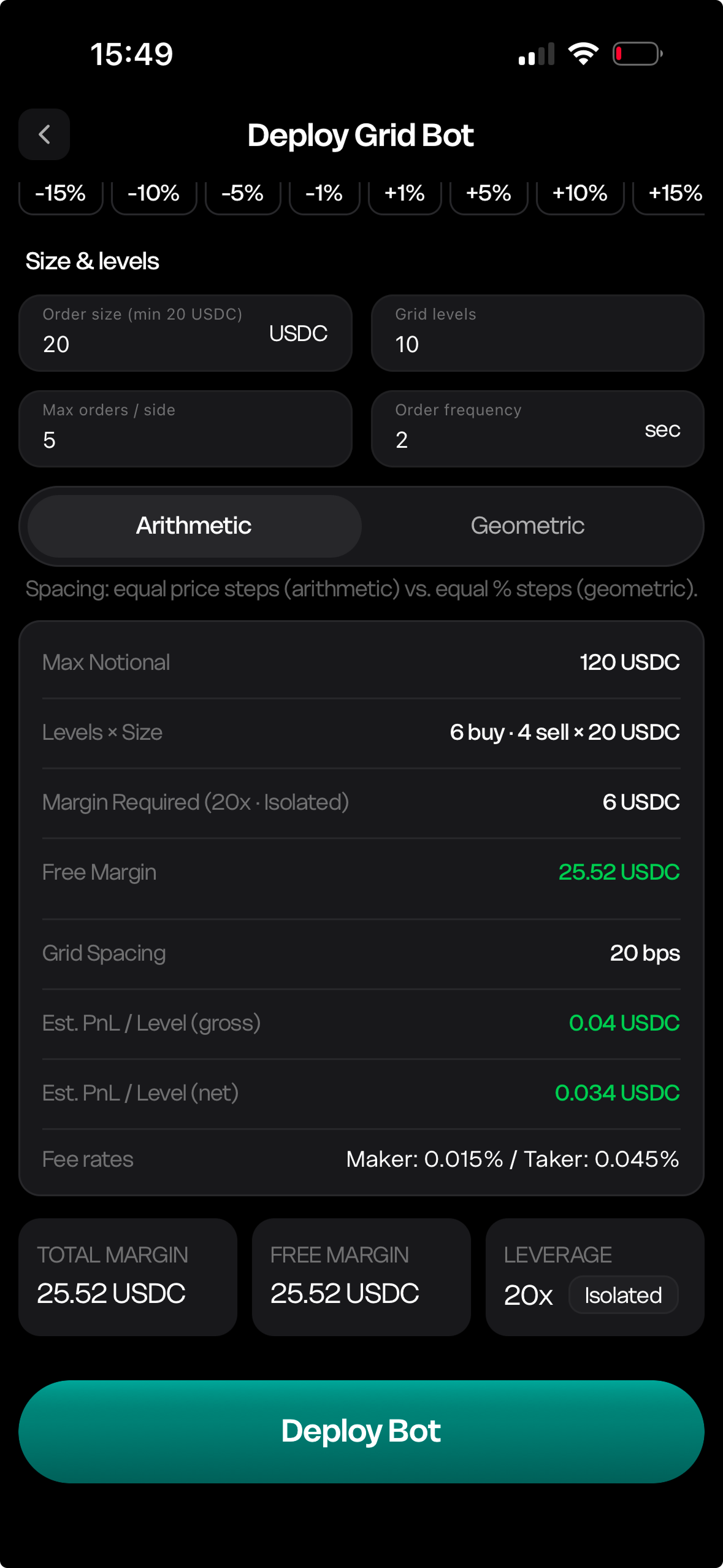
Complete the grid settings:
* Order size: USDC amount used at each grid level
* Grid levels: number of levels between the lower and upper bounds
* Max orders/side: maximum number of orders the bot can keep open on each side of the grid
* Order frequency: how often, in seconds, the bot refreshes its orders
The minimum order size is 20 USDC. You can configure between 2 and 100 grid levels.
Choose how the levels are distributed across the range:
* Arithmetic: equal price spacing between levels
* Geometric: equal percentage spacing between levels
### Review the Configuration
Review the calculated summary below the grid settings. It shows the configured grid size, estimated margin requirements, available free margin, grid spacing, estimated PnL per level and fee rates.
The selected account’s total margin, current leverage and margin mode appear below the summary.
If the estimated required margin exceeds your free margin, Matrix displays a warning. Adjust the order size, number of levels, price range or account leverage before deploying.
### Deploy the Bot
Check the selected account, market, price range and grid settings, then tap Deploy Bot.
If the button is unavailable, check that the selected account is ready for trading and that all fields meet the displayed requirements.
Once deployment begins, Matrix opens the bot details page. For information about tracking its status and results, see [Monitor a Bot](/perp-bots/monitor-a-bot.md).
### Tutorial
{% embed url="" %}